The Scrimora Bot Now Posts Your Scrims to Discord, With the Lineup
ReleaseEmmanuel Lampe02 Nov 20264 min read
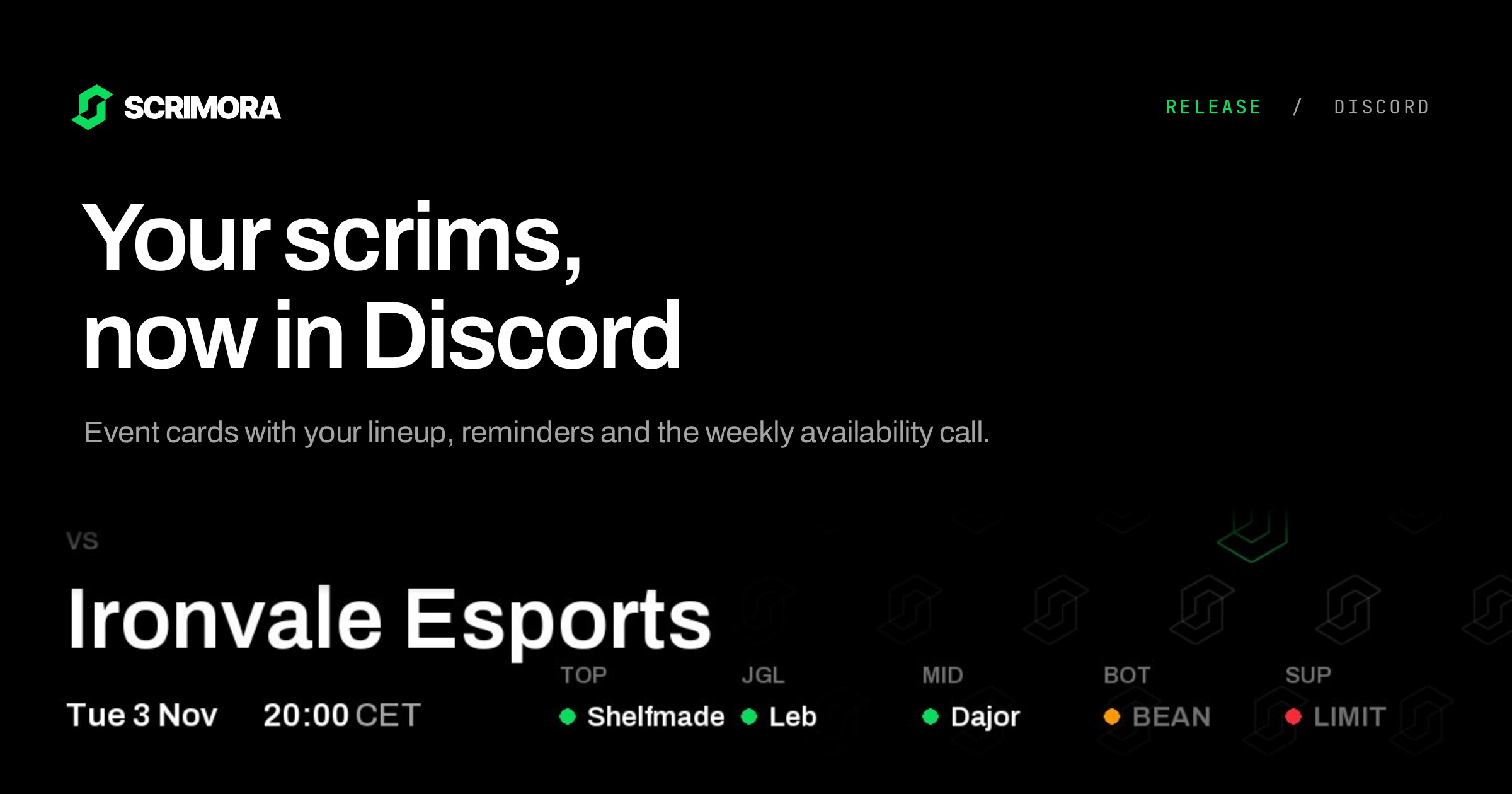
Until now, Scrimora talked to Discord through a webhook. You pasted a webhook URL into the team settings, and Scrimora posted one line of text when someone created an event or joined the roster.
That line never changed. If you moved or cancelled the scrim, the old message stayed as it was, and it never said who could play. So the planning still happened in Discord chat, with someone asking "who is in tonight?" an hour before the block.
This release replaces the webhook with the Scrimora bot:
- Connect a team with
/scrimora setup - Event cards with your lineup that stay up to date
- Scrim reminders that name missing players
- The weekly availability call in Discord instead of email
- New member messages
Connect your team in three steps
Open your team, go to Settings and choose Notifications. If no channel is connected yet, you see three steps.
- Click "Link account" and connect Discord on the accounts page. Scrimora uses this link to check that you can manage the team.
- Click "Invite bot" and add the bot to your server. It asks for five channel permissions: View Channel, Send Messages, Embed Links, Attach Files and Read Message History.
- In your team's channel, run
/scrimora setup, choose your team and click "Connect team".
You need the Manage Server permission in Discord to run the command, and permission to manage the team in Scrimora. The command has two optional fields: team to search your teams, and channel to connect a different channel than the one you type in.
If the bot is missing a permission in that channel, it tells you which one, for example "Give the Scrimora role Attach Files in this channel or its category, then run /scrimora setup again."
When the connection works, the bot posts a "Connected" card in the channel. It lists your reminder settings and has a "Notification settings" button that opens the Scrimora settings.
If your organization has more than one roster, connect each team to its own channel on the same server. One channel can only belong to one team.
Event cards with your lineup
When you create an event in Planning, the bot posts a card with the opponent, the date and your lineup.
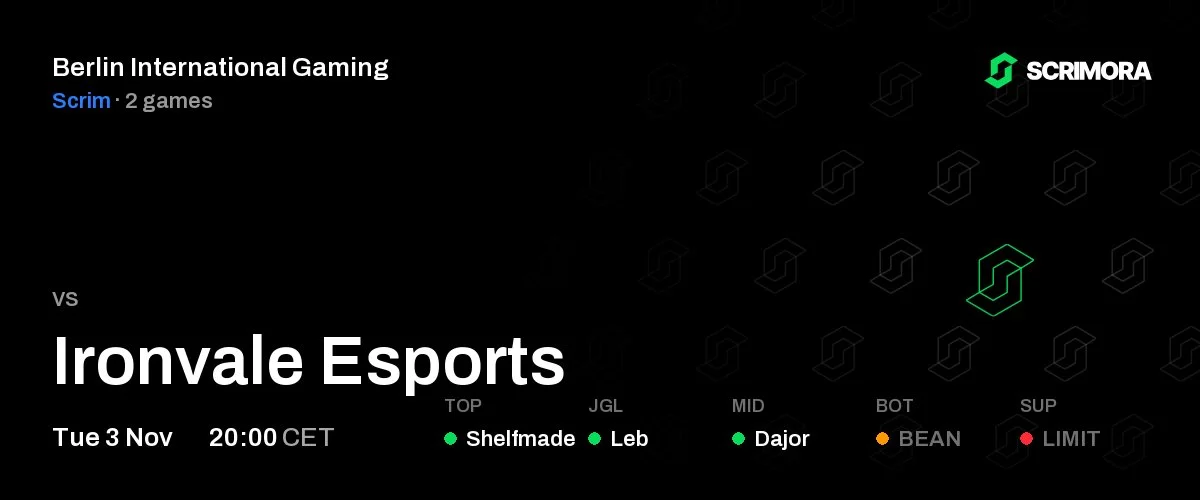
The lineup has one player per lane. The dot shows their answer for the event time: green can play, orange maybe, red cannot, gray has not answered.
The bot keeps editing that same card. It changes when a player updates their availability or when you edit the event. When you delete the event, the card shows it as cancelled.
For scrims, reminders reply to the card 2 hours before, 15 minutes before or at the start, and name the players who have not confirmed. The buttons on the card open the event in Scrimora, or the drafter when the scrim has a draft.
The weekly availability call moves to Discord
Before, players who had not entered their hours got an email on Monday. With the bot, the team gets one message in the channel instead.
Every Monday at 10:00 (Berlin time), the bot posts "Availability for week" and the week number, the dates of the week, and "Still missing:" with the names of the players who have not entered hours. The "Enter availability" button opens the availability page.
The names are plain text, so nobody gets pinged. When this message goes to Discord, the players get no email. If you turn off Availability call, the emails come back.
Choose your messages
All settings are under Settings, Notifications, Messages. Click "Save" after a change.
- Event cards. New, moved and cancelled events, with the lineup.
- Scrim reminders. 2 hours before, 15 minutes before, at the start.
- Availability call. The Monday message.
- New members. A short message when a player or staff member joins the roster, with their role.
Scrim reminders and the availability call need the bot. Without a connected channel, they are disabled. When you connect the first channel, Event cards are on, the reminder is 15 minutes before, and the availability call is on.
Each connected channel shows the server, the channel and the time of the last message. Click "Send test" to post the "Connected" card again. Click "Disconnect" to remove the channel.
Try it with your next scrim
Connect your team under Settings, Notifications, then create your next scrim in Planning. The card shows up in your channel.
If a message is missing, unclear or too loud, tell us on Discord.